Enter your information, and our team will text you shortly.
DrChrono
Connect DrChrono to LeadLoop (OAuth 2.0)
This guide shows how to create a DrChrono API application and connect it to LeadLoop using the Authorization Code flow.
Prerequisites
- DrChrono account with permission to create API applications.
- LeadLoop account with admin access.
- Ability to copy/paste your Client ID and Client Secret into LeadLoop.
Required Redirect URI
When creating your DrChrono API application, add this exact Redirect URI:
https://api.leadloop.io/1.0/integration/oauth2/callbackNote: The Redirect URI must match exactly (including scheme and path). If DrChrono supports multiple redirect URIs, include the one above verbatim.
Create a DrChrono API App
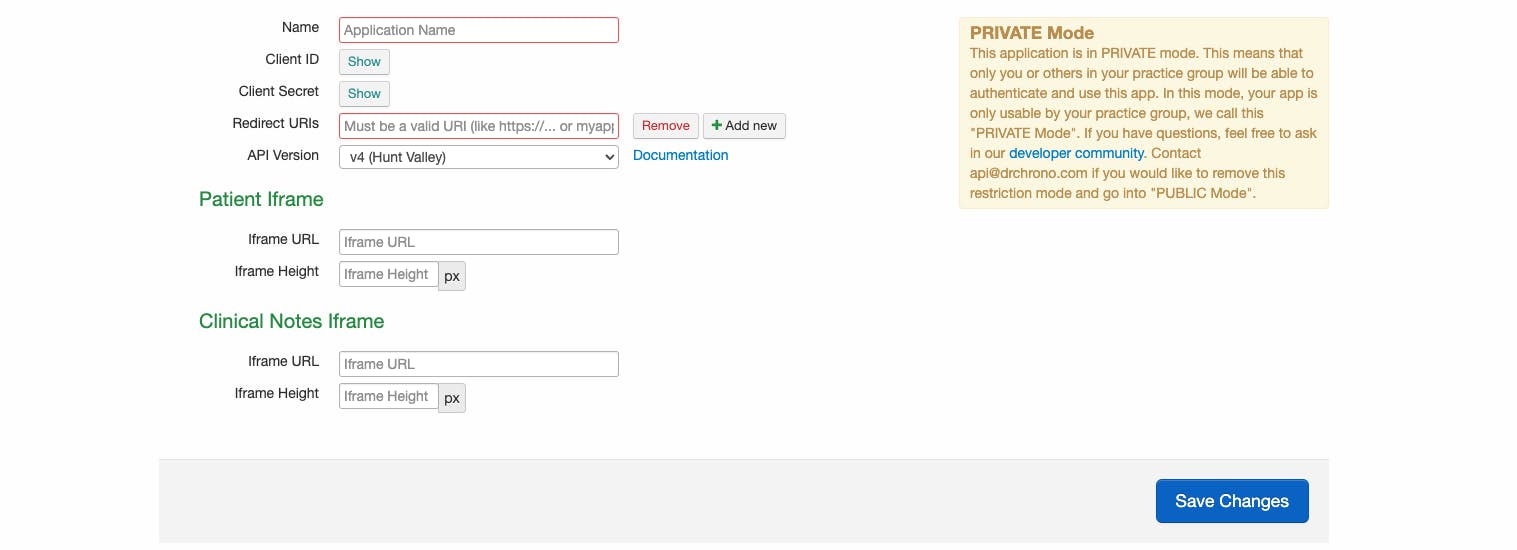
- Sign in to DrChrono and open the developer/API settings (see DrChrono’s “Creating an API Application” help article).
- Select Create Application (or similar).
- Enter an application name (e.g., “Your Practice Name - LeadLoop Integration”).
- Set the Redirect URI to:
https://api.leadloop.io/1.0/integration/oauth2/callback - Select API Version: v4 (Hunt Valley)
- Save the application and copy the generated Client ID and Client Secret.
- Patient Iframe and Clinical Notes Iframe should be left blank
Add Client Keys in LeadLoop
- In LeadLoop, go to Settings > Integrations > DrChrono.
- Paste your Client ID and Client Secret from DrChrono.
- Click Login with DrChrono to begin the OAuth flow.
Authorize & Grant Access
When prompted, sign in to DrChrono and review the requested scopes. Approve to grant LeadLoop access. You will be redirected back to LeadLoop’s callback URL where the authorization code is exchanged for tokens.
Verify the Connection
- After authorization, LeadLoop will validate tokens and finalize setup.
- In Settings > Integrations, confirm the status shows Connected.
- Run a sync to confirm.
Troubleshooting
- Redirect URI mismatch: Ensure the DrChrono app’s Redirect URI exactly matches the one shown here.
- Invalid client: Re-copy the Client ID/Secret and verify no extra spaces.
- Scope errors: Reduce to the minimal scopes required; re-authorize.
- Access denied: Make sure you are logged into the correct DrChrono account with permissions to grant access.
- Expired/invalid refresh token: In LeadLoop, disconnect and reconnect the integration to re-consent.